Search for a command to run...
[This guest post was authored on 06th April, 2023 by Siddhi Jain, a qualified Company Secretary (FCS) with an MBA in HR and over 16 years of experience in serving the corporate sector. If you have any queries regarding this article, you can reach out to her at siddhisjain@gmail.com].
V3 vs V2
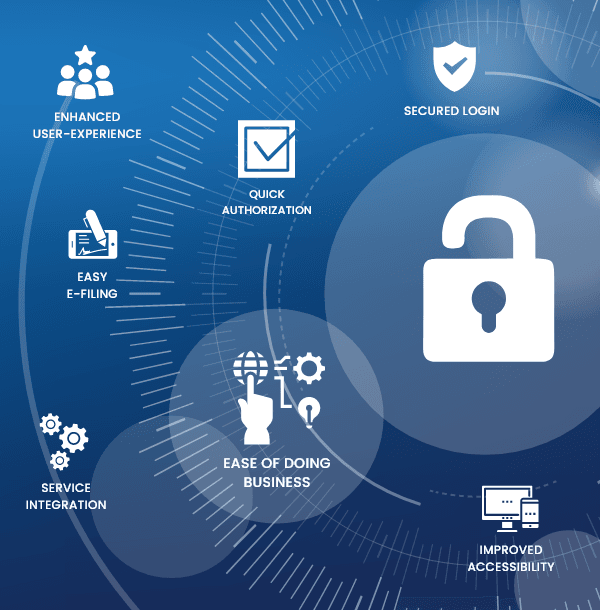
The Ministry of Corporate Affairs (MCA) is currently in the process of upgrading its portal from Version 2 (V2) to Version 3 (V3). While V3 offers a more simplified online user experience and greater authenticity, with login via email ID and OTP, the transition has not been without its challenges.
Initially, the V3 login was only available for Limited Liability Partnerships (LLPs). However, the MCA recently made 56 new company forms available for filing on the V3 portal, which has brought new challenges for users. The new portal is completely different from its predecessor, and many users are facing technical glitches while filing even the simplest forms.
To avoid issues and delays, there are a few small things that users need to keep in mind while registering and using the V3 portal:
Firstly, users should ensure that they have Emsigner and Embridge properly installed in their system with the latest updated versions. Secondly, when creating or registering a user account, it is essential to use a specific email ID and phone number for each user. Using the same email ID for multiple DIN holders can create issues in registering DSC and DIR-3 KYC Web in the future. Therefore, new DIN applications should be made accordingly.
Thirdly, users must create a Business User account on V3 for every director or key managerial person associated with the company. If there is an issue in creating a Business User account directly, users can create a basic Registered User Account and then upgrade it to a Business User.
Fourthly, users should change the PIN before registering their DSC. Finally, if users face any errors while filing, submitting, or uploading e-forms on the V3 portal, they should take screenshots of the error and raise a service-related complaint on the MCA portal. Users must provide all the necessary details and define the exact problem for a speedy resolution.
However, due to the high volume of service requests, it may take 2-3 weeks to get a resolution, even though it is mentioned that the ticket will be answered within 2 working days. Users can also call the Grievance cell for the status of their ticket on 0120-4832500 and provide the ticket number to seek further help.
The Institute of Company Secretaries (ICSI) has also come up with 5 helpline numbers to assist users during this transition phase. In conclusion, with these tips in mind, users can make the most of the upgraded V3 portal while avoiding unnecessary delays and issues.
The new V3 portal for filing forms does not generate an SRN/Challan like the previous V2 portal. Instead, it only provides a form number that cannot be traced under the "Track Payment Status" or "Track SRN Status" on MCA. However, you can follow the below steps to download the Challan:
Visit the link of Bharatkosh given their and Track Transaction/Verify User and click on "Track Your Payment" or "Payment History".
Select "Normal Transaction".
Enter the mobile number or email id that is linked with your MCA account and the Captcha as mentioned. An OTP will be sent to your chosen option.
Enter the OTP received (OTP is available for 4 minutes).
Choose the period for which you want to generate the Payment Challans.
Click on "Search".
You will see a list of all the payments made from your MCA account. Click on the blue hyperlink against each transaction.
Once the link opens, you will see an option to download the Transaction Receipt and Challan in PDF format.
Download the documents for your records.
By following these steps, you will be able to download the Challan and Transaction Receipt for your MCA account.
What is V3 Login Process?
Step 1: Select the V3 login option from the Sign in/Sign up link present on the top right corner of the MCA portal.
Step 2: Please enter your username. It would be CIN/LLPIN/FCRN for Company/LLP users and “Email ID” used to register for all other users.
Step 3: Please enter your password and click on login. If you are a Business User, you may be required to enter an OTP (will be sent on your mobile number and email ID) if: -
How to upgrade V3 account from Registered User to a Business User
Registered User can upgrade to a Business, one must not create a new Business user. The following needs to be done to upgrade. Even registered users in V2 can upgrade to Business User in V3
Disclaimer:
The opinions expressed by the Author and those providing comments are theirs alone, and do not necessarily reflect the opinions of Daily Law Times Private Limited (DLTPL) or any employee thereof. DLTPL is not responsible for the accuracy of any of the information supplied by the Guest Author. This work is the opinion of the Author. It is not the intention of DLTPL to malign any organization, company, or individual and not be considered as Legal Opinion.
